
Introduction
Investigating declining sales, inventory issues, or an inactive listing often means searching reports across Seller Central, comparing data, and digging through Amazon’s help pages. Even identifying the cause can take time.
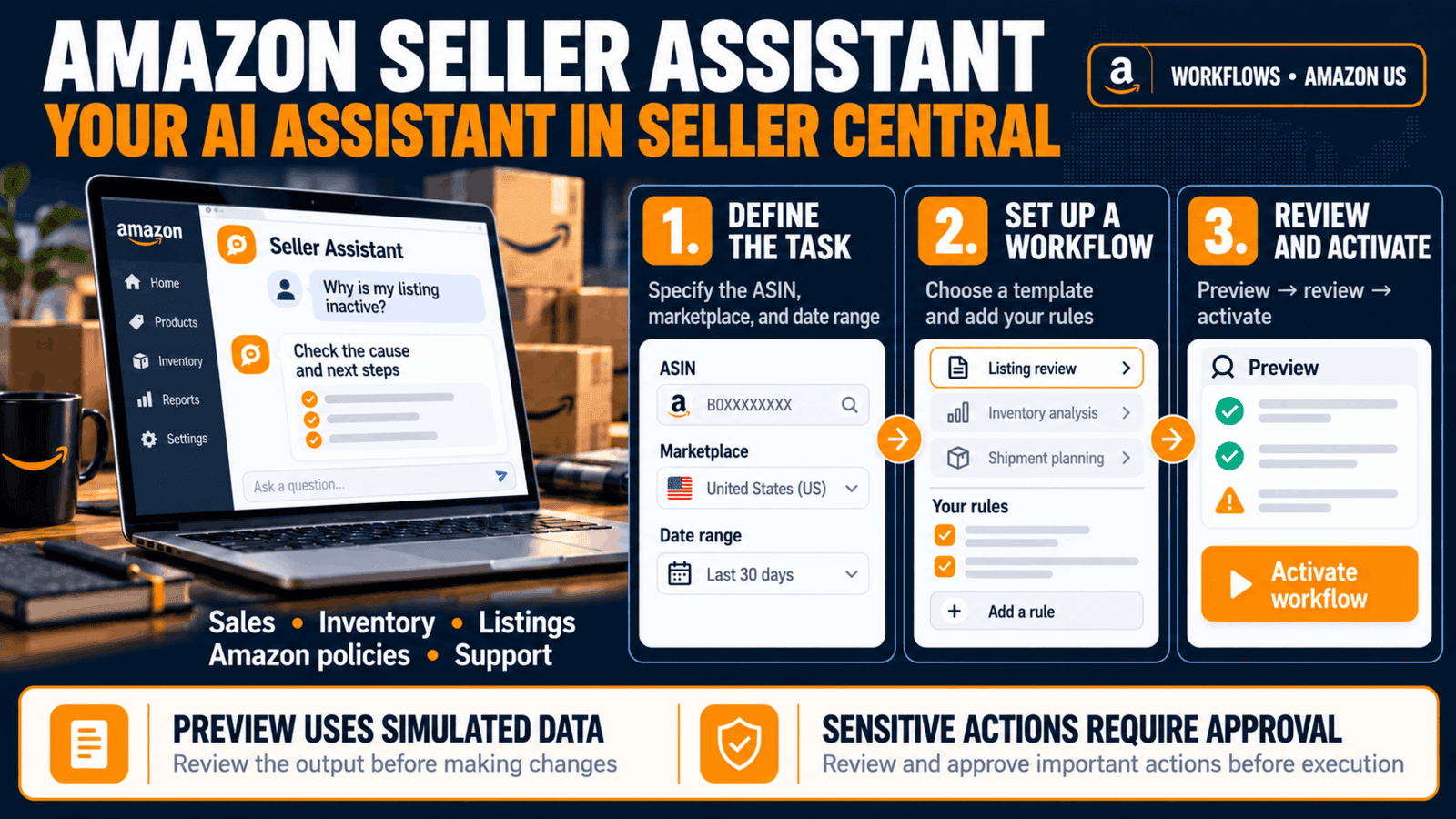
Amazon Seller Assistant can handle part of that work. Built into Seller Central, this AI assistant uses account data to help sellers investigate problems and identify next steps.
What Is Amazon Seller Assistant, and Where Can You Find It?
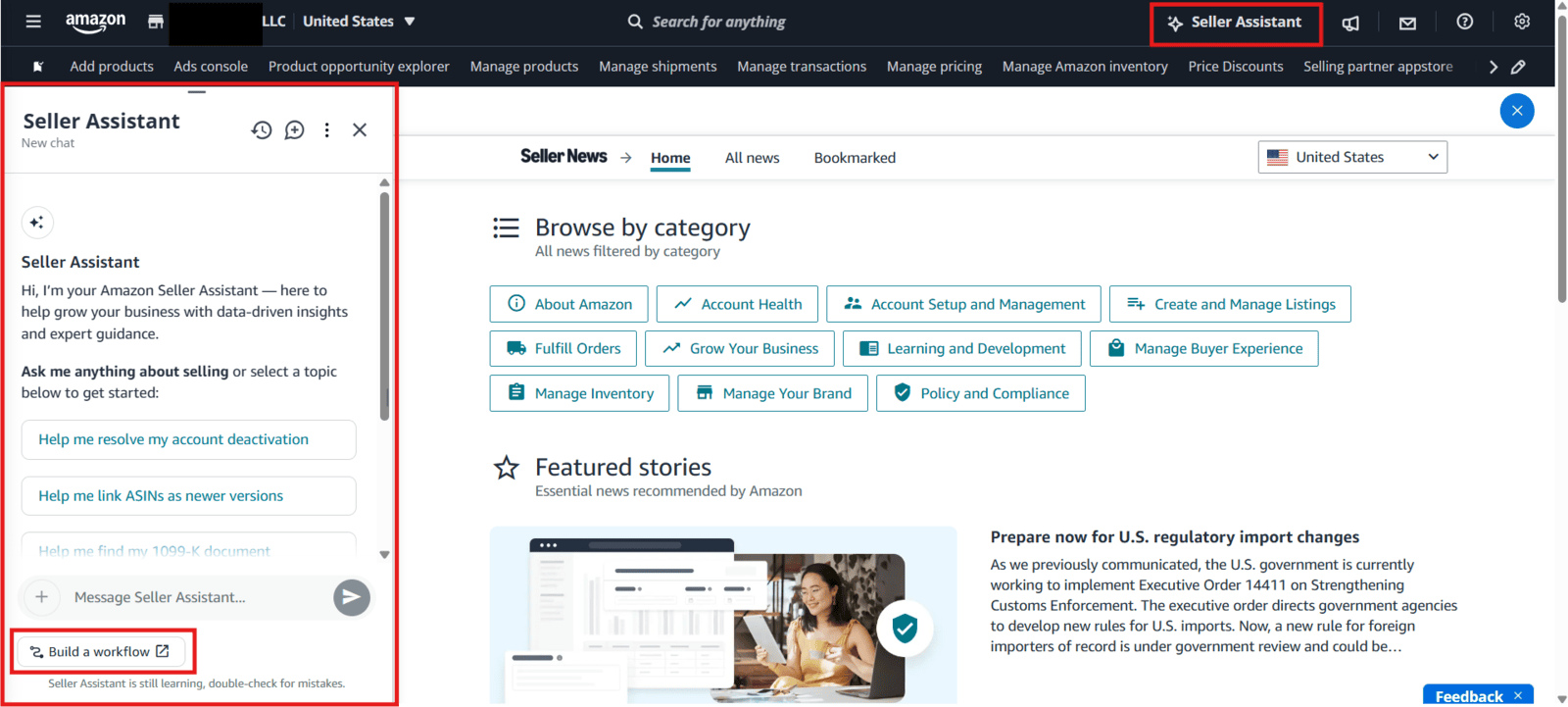
Amazon Seller Assistant, previously known as Project Amelia, is an AI assistant inside Seller Central. It answers questions about Amazon’s policies, analyzes account data, and helps sellers resolve product-related issues.
How to Ask Questions: Three Practical Examples
Compare Sales and Traffic
“Compare sales and page views for ASIN [number] in the US store over the last two complete months. Specify the exact date ranges and available metrics. Separate changes in the data from assumptions about their causes.”
Investigate an Inactive Listing
“Check why the offer for SKU [number] is inactive in the US store. Show the cause you identified, any related notifications, and possible steps to resolve it. Do not make any changes to my account yet.”
Check Inventory Issues
“Check inventory for SKUs [list]. Identify products that cannot be sold because an offer is missing or inactive. Explain the reason for each item and suggest next steps without taking action.”
How to Run a Prebuilt Seller Assistant Workflow
A one-time question works for an individual check. Seller Assistant Workflows lets you save a multistep task and run it on a schedule or on demand. At the time of writing, Workflows is available to sellers in Amazon’s US store.
Amazon’s help page lists five templates. Account Health Monitor tracks account issues and prioritizes them by urgency. Order & Returns Digest summarizes orders and returns. Pricing Analyzer identifies active offers that aren’t winning the Featured Offer. Product Expansion Finder suggests opportunities to expand your assortment. Review & Feedback Requestor requests product reviews and seller feedback on eligible orders.
To see how setup works, start with Order & Returns Digest. It is designed to provide a regular overview of orders and returns that need attention.
Open Seller Assistant Workflows in Seller Central or select Build a workflow in the chat. Choose Order & Returns Digest.
Read the template description. The overview shows the steps and the operating limits, labeled Guardrails.
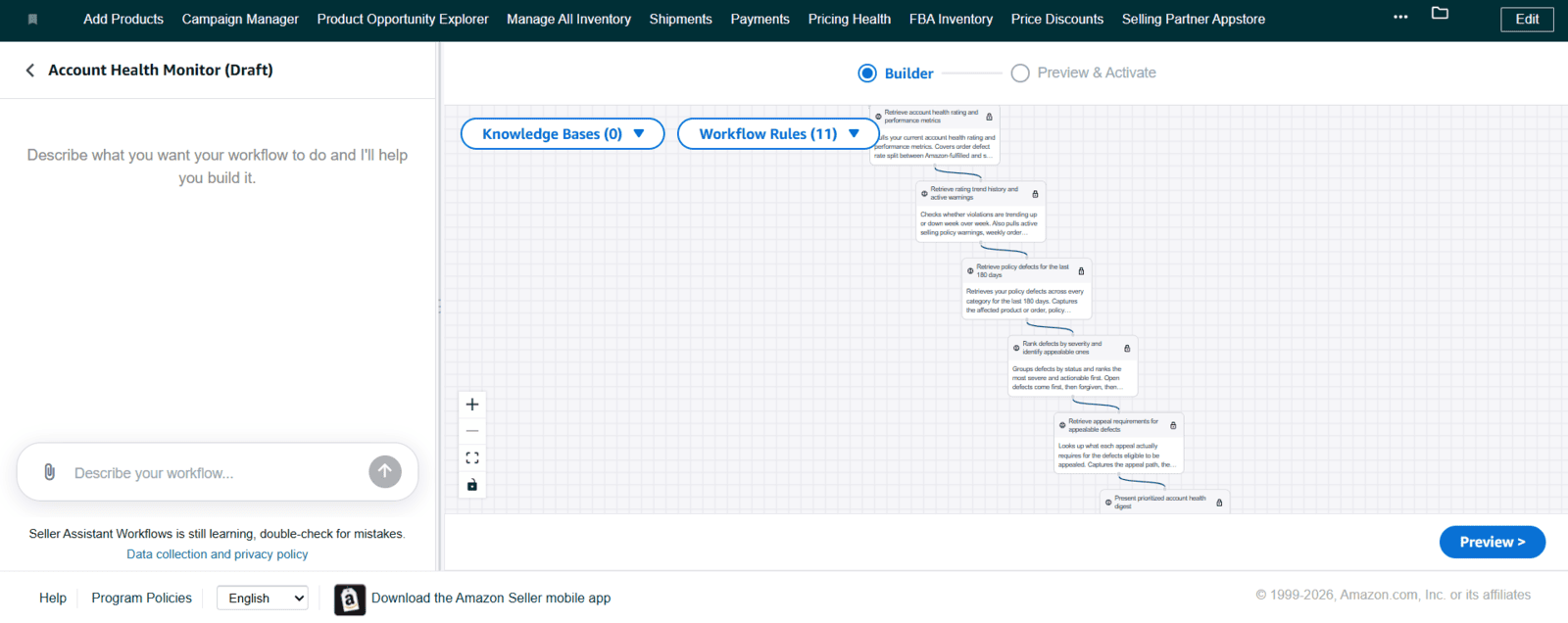
Select Use this template. In Builder, describe changes to the assistant on the left and review the step diagram on the right. Check Workflow Rules and connected Knowledge Bases. Specify which orders to include in the digest and set a schedule if you want recurring runs.
Select Preview. This test uses simulated data: it demonstrates the workflow rather than analyzing your store. Review the output and warnings. A completed run does not necessarily mean every step finished without errors.
If the workflow meets your needs, select Activate Workflow. After it runs on your account, check the run history and results. Adjust the instructions or turn off the schedule if necessary.
We help Amazon sellers improve listings, optimize SEO and content, analyze competitors, and build product pages designed for both search visibility and conversion.
How to Create a Custom Workflow
On the Workflows page, select Create Workflow and describe the task in plain language. For example:
“Every business day, prepare a summary of Account Health issues. Prioritize them by urgency, identify the affected products, and suggest next steps. Do not change listings or submit support cases without my approval.”
Check which parts of the request the tool can perform. The assistant may ask follow-up questions; once setup is complete, you can preview and activate the workflow. Decide on the frequency, data to use, output format, and permitted actions before turning it on.
How to Add Documents to a Knowledge Base
A Knowledge Base gives the workflow additional information about your business. It can contain your return policy, shipping preferences, or SKU-specific instructions. A document might explain which product characteristics to consider when reviewing returns, for example.
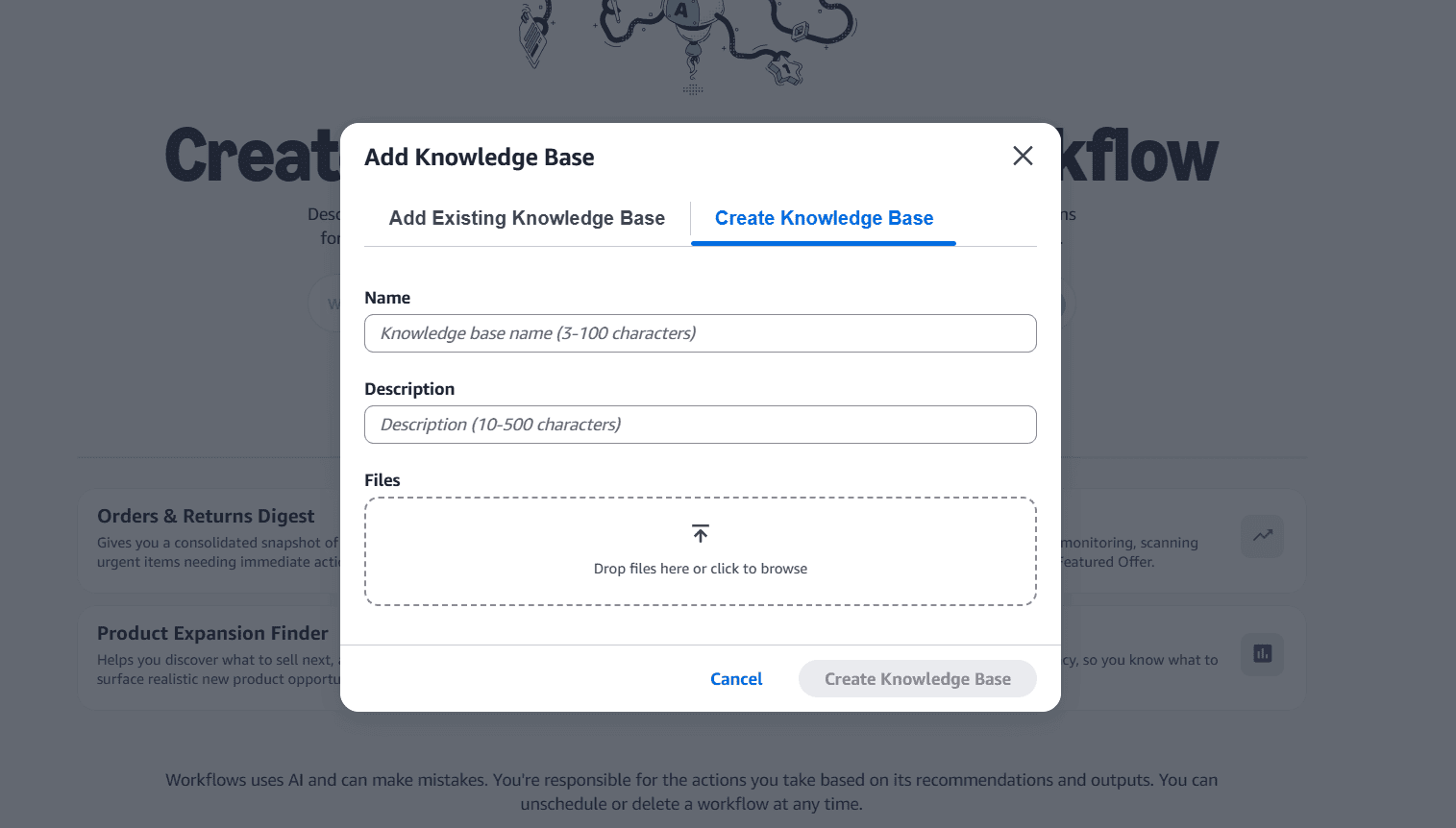
On the workflow creation page, select Add knowledge base. Use Add Existing Knowledge Base to connect one you already have. To create a new one, open Create Knowledge Base, enter a name and description, upload documents under Files, and select Create Knowledge Base.
Documents, Limitations, and Contacting Support
You can ask Seller Assistant to explain a documentation request for an ASIN or show you where to check product requirements. Its answer does not replace the relevant help page or compliance notifications in your account. Instructions for uploading a certificate do not establish that the document is appropriate or that Amazon will accept it.
If the issue remains unresolved, the assistant can help prepare a case and connect you with a support associate through an available channel. Provide the ASIN, marketplace, problem, and steps you have already tried. Before submitting, review the summary for accurate facts, the error message, and a clear request to support.
Amazon’s Seller Assistant help page warns that AI can make mistakes. Check the underlying data as well as the recommendations. A sales decline alone does not prove an advertising problem, and editing a listing’s text will not resolve every policy violation. Account Health deserves regular attention as part of that review.
Frequently Asked Questions
Is Amazon Seller Assistant Free?
Yes, Seller Assistant itself is free. External AI services connected through the plugin may have their own pricing and terms.
Which Languages Does Seller Assistant Support?
Amazon’s support-resolution help page lists English, French, Spanish, Italian, Chinese, German, Japanese, and Portuguese.
Can an Employee Use Seller Assistant?
Yes. The primary user enables access under User permissions → Edit → Seller Assistant → Edit access → Save changes. Individual actions also depend on the employee’s permissions for the relevant areas of Seller Central.
Does a Conversation Automatically Create a Support Case ID?
No. A chat with the assistant does not create a case ID by itself. A case ID is created when you contact a human associate by email, phone, or live chat. AI conversations are available under Chat history.
Do You Need a Developer to Create a Workflow?
No. You describe the task in plain language and configure it in the interface. You do not need to register as an SP-API developer to use this process.
Book a call now…
Book a call now…
Up to 45-min duration video-call
Topics we'll discuss:
| The next steps — there are two options
|